
Mass Calendar Invite in Outlook and O356
Are you trying to send a mass calendar invite in outlook for webinars, events, training, or team meetings? If yes, you already know how slow it feels to add email addresses one by one. This work takes time and quickly becomes tiring.
Many teams still send meeting requests one person at a time in Outlook. This may seem fine for small groups. But when the guest list grows, this process becomes frustrating and stressful.
This guide shares easy and common ways to send a mass calendar invite in outlook and mass calendar invites in o365. You will learn how people usually do it, what works, and where problems start when the list becomes large.

Using Outlook for Mass Calendar Invites
Outlook is used by many people for daily emails and meetings. It is a popular tool for scheduling and team communication.
For small meetings, Outlook works well. You can add a few guests and send invites quickly. Most teams are comfortable using it for regular work.
As meetings get bigger, such as webinars or company-wide events, sending a mass calendar invite in outlook can be tricky. Basic features are not made for large guest lists.
That is why many users look for better ways to handle mass calendar invites in o365. If your focus is specifically on meetings inside Outlook, you can follow this simple step guide. The right method can save time, reduce mistakes, and help make sure every guest gets the invite.
Traditional Ways in Outlook
Outlook is often the first tool people try for mass calendar invites. It is familiar, so people naturally start there.
Outlook works well for small teams and simple meetings. But as the number of guests increases, the process becomes slower. Adding many emails, fixing errors, and handling replies can take a lot of effort.
Many users also find Outlook confusing because it has many buttons and settings. This makes it harder for new users to manage large meetings.
Here are popular ways to send mass calendar invites in Outlook, plus the issues people often face.
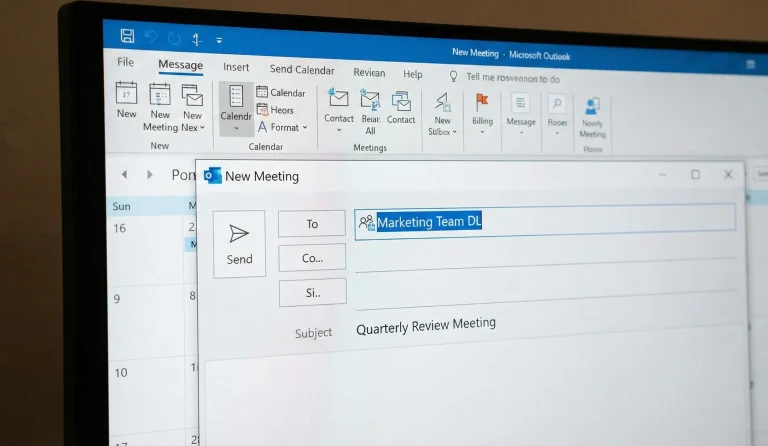
1. Using Distribution Lists / Contact Groups:
This is one of the most common ways people try to send a mass calendar invite in outlook. Many office users already use Contact Groups, so this method feels simple at first.
Instead of typing many emails each time, you create a group and add members once. Then, when you create a meeting, you type the group name. Outlook sends the invite to everyone in that group.
This works well for small internal teams and weekly meetings. It can save some typing and make repeat meetings easier.
But when the group becomes large, problems start. Managing members becomes harder. Reply-all emails can create confusion. Adding external guests also makes things more difficult.
So while this method supports mass calendar invites in Outlook, it does not scale well as your list grows.
The steps:
- Go to People > New Contact Group.
- Add members from your address book or a file.
- Create a new meeting and enter the Group Name in the “To” field.
Pros:
- Meeting invitations typically have high deliverability within the same company.
- Easy to reuse for weekly meetings.
- Good for people who are used to working around Microsoft Office products.
Cons:
- No personalization in the calendar.
- Uncontrolled “Reply All” storms in email can quickly become a nightmare.
- It can be difficult to manage for external recipients.
- Outlook has a complex user interface, which can be confusing.
- Other attendees can view the names of all the guests.
2. Using Mail Merge (Word + Outlook):
Some users try to use Microsoft Word with Outlook to manage mass calendar invites. This method allows sending emails using a list created in Word.
This gives a little more control than Contact Groups. Some teams use it to avoid reply-all problems and to keep emails more private.
However, this setup is not easy. You must learn how to use both Word and Outlook together. It takes time to understand and manage.
For large lists, this method becomes slow and confusing. Even though it can support mass calendar invites in o365, it is not built for large events or fast setup.
This method can work for some teams, but it is not simple for most users.
The steps:
- Open a new email or calendar invite and click the New Calendar Poll button in the ribbon.
- Select several time slots from your calendar that you are willing to host.
- Enter your list of recipients and send the poll.
- Once a consensus is reached, the poll can automatically send a final calendar invite to all participants.
Pros:
- Let recipients choose the meeting time instead of forcing one.
- Automatically holds your calendar to prevent double-booking during voting.
- Delivers the final invite once the preferred time is selected.
- Similar to the Google spreadsheet method.
Cons:
- External users often struggle with logging in and a poor voting experience.
- With 50+ attendees, agreeing on a time is nearly impossible.
- Limited customization makes these polls unsuitable for crucial corporate needs.
- Both parties receive excessive automated change-notification emails.
- Compatible calendar systems are rarely used in large, diverse lists.
3. Using Excel + Copy-Paste (Manual Mass Add):
This is one of the easiest ways people try to send a mass calendar invite in outlook. Many teams already keep email lists in Excel.
You copy email addresses from Excel and paste them into the Outlook meeting invite. For small lists, this may feel fast and easy.
But as the list grows, this method becomes risky. Outlook may block large lists. Emails can be pasted incorrectly. It becomes easy to miss people or add wrong addresses.
Privacy can also become a problem because guests may see other email addresses. Manual checking takes more time and adds more stress.
While this can work for mass calendar invites in o365, it is not safe or scalable for large events.
The Steps:
Open your Excel file that contains all email addresses.
Copy the complete list of email addresses from Excel.
Paste the emails into the Outlook meeting guest field.
Send the meeting invite to all added email addresses.
Pros:
- No extra tools are needed to use this method.
- It is easy to use for very small email lists.
- It works well if emails are already stored in Excel.
Cons:
- Outlook may limit or block very large guest lists.
- It is easy to make typing or pasting mistakes.
- There is no way to personalise each calendar invite.
- Guest email addresses may be visible to other guests.
- This method is not suitable for large events or webinars.
4. Using Outlook Distribution Groups (Office 365 Admin Method):
In O365, IT teams can create official Distribution Groups using the admin panel. These groups allow many internal users to be invited at once.
This works well for company or department meetings. IT teams manage the groups, which gives better control and security.
However, this method is not flexible. Normal users cannot easily create or update these groups. Changes often require help from IT.
It also does not work well for external guests. Because of this, it is limited to internal use.
While this supports mass calendar invites in o365, setup is slow and not useful for many real-world event needs.
The Steps:
-
Admin creates a Distribution Group in the Office 365 Admin Centre.
-
Team members are added to the group by the admin.
-
User enters the group email in the Outlook meeting invite.
-
Outlook sends meeting invites to all group members automatically.
Pros:
-
- This works well for large internal company teams and departments.
- IT teams manage groups for better control and security.
- Delivery rates are high for internal company email systems.
Cons:
- Normal users cannot create or manage these distribution groups.
- This method is not good for inviting external guests.
- There is no way to personalise calendar invites.
- Group setup and changes can take extra time.
5. Using Shared Mailbox or Shared Calendar:
Some teams use shared mailboxes or shared calendars to manage group scheduling. This is common in HR, training, or support teams.
A shared account sends meeting invites. This helps keep meetings in one central place and allows teams to work together.
However, this does not fix mass calendar invite problems. Guest emails still must be added manually. Outlook limits still apply.
Privacy issues and scaling problems also remain. This makes it hard to use for large lists.
This method works for small team use, but becomes difficult for large mass calendar invites in o365.
The Steps:
-
Open the shared mailbox or shared team calendar account.
-
Create a new meeting from the shared calendar interface.
-
Manually add all guest email addresses to the meeting.
-
Send the meeting invite from the shared team account.
Pros:
-
- This works well for team-managed meetings and shared responsibilities.
- It keeps all meetings centralised in one shared calendar location.
- This is useful for internal teams managing recurring meetings.
Cons:
- Guest email addresses still must be added manually.
- The same Outlook guest limits still apply here.
- There is no option for personalized invites.
- This method is hard to scale for very large lists.
6. Using Third-Party Add-ins for Outlook (O365 Plugins):
Some users install Outlook add-ins to help with mass calendar invites. These tools often connect Outlook with Excel or contact lists.
For small tasks, add-ins can reduce some manual work. They may help import contacts and send invites faster.
But most add-ins are still limited by Outlook rules. Many require paid plans and extra setup. Some also need technical help to configure.
They are usually not designed for very large public events. Add-ins may help a little, but they are not a complete solution.
They do not fully solve mass calendar invites in o365 at scale.
The Steps:
Install an Outlook add-in from the Microsoft add-ins store.
Connect your Excel file or contact list to the add-in.
Create a new meeting directly inside the Outlook calendar.
Use the add-in tool to send meeting invites automatically.
Pros:
- This reduces some manual copying and pasting work.
- It works directly inside the Outlook email and calendar app.
- Some tools may support importing contacts from Excel files.
Cons:
-
- Many Outlook add-ins require paid subscriptions to use.
- Initial setup can be confusing for non-technical users.
- Outlook sending rules and limits still apply here.
- This method is not ideal for large public events.
Why Outlook Methods Become Hard at Scale
All these methods show that sending a mass calendar invite in outlook and O365 is possible. But they also involve a lot of manual work and setup.
As your guest list grows, these methods become slower and more stressful. If you want a complete walkthrough for handling large meeting invitations properly, you can explore our step-by-step guide. You spend more time fixing errors, handling limits, and managing replies.
This is why many teams move to tools built specially for mass calendar invites. These tools are made to handle large lists easily, instead of forcing Outlook to do jobs it was not designed for.
Stop Struggling with Outlook - Use BulkCalendar
To bypass these limits, you need a purpose-built tool like BulkCalendar. It serves as a link between your spreadsheet and attendees’ calendars. This ensures every invite reaches them without risking their privacy.
BulkCalendar is the most professional, time-saving, and effective way to send mass meeting invites in 2026. It clears away the tech issues of guest limits and privacy leaks. This lets you focus on your event instead of worrying about manual data entry.
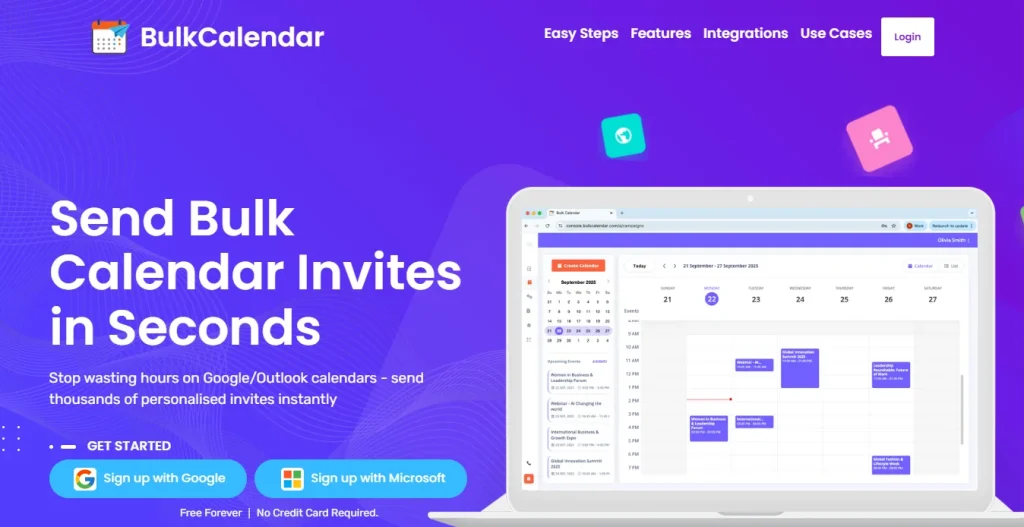
3 Easy Steps
Save hours of manual work – in just 3 simple steps, you can personalize every invite and send bulk meeting invites directly from your own email and domain
Create Calendar
Add a Personal Touch, Use First Names or Any Data You Choose
Import Guests
Copy-paste thousands of emails, or upload a CSV or Excel file
Send
Send securely from your own email or domain
Purpose-Built Tool That Saves You Hours
BulkCalendar makes sending, personalizing, and managing large calendar invites effortless - so you can focus on running your events, not fighting your calendar.
Mass Invites in Seconds
Send thousands of invites at once without guest limits or repetitive clicks.
Personalized for Every Guest
Add names, custom notes, and details so every invite feels personal and engaging.

Works with Every Calendar
Send calendar invites that work seamlessly across all major apps - Google, Outlook, Apple, Yahoo, and more. So your attendees never miss an event.




Conclusion
Manual scheduling takes a lot of time. Sending calendar invites one by one in Outlook makes large meetings hard to manage.
When guest lists grow, mistakes, delays, and limits become common. This makes planning events more stressful than they should be.
The message is simple. Your time is important. Scheduling should be easy, not tiring. With the right system, you can invite hundreds or thousands of people with a simple process.
Want to see how it works? Join many professionals who have made mass calendar invites in Outlook simple and fast.
Free Forever | No Credit Card Required