
Send Multiple Calendar Invites Using Easy Methods
Are you trying to send multiple calendar invites? This could be for meetings, webinars, training sessions, online classes, or events. Many people still send calendar invites one by one. This takes a lot of time and makes the work feel slow and tiring.
When you send many calendar invites by hand, you need to type email addresses repeatedly. People can miss emails, add wrong addresses, and not everyone might receive invites. These small mistakes can create confusion and make your event look unprofessional.
Learning the right way to send multiple calendar invites can save many hours of work. It also helps reduce stress and keeps everything organized. This guide shows simple ways to send multiple calendar invites with popular tools. Each method is explained in very simple language so anyone can understand it.

Why Regular Calendar Tools Fall Short
Most calendar tools are made for small meetings. They work well when you are inviting five or ten people. But when the guest list becomes large, these tools start showing problems.
When you try to send multiple calendar invites to many people at once, the system becomes slow. You may have to split your guest list into smaller parts. Sometimes the invite fails without warning. This creates extra work and wastes time.
Another big issue is privacy. Many normal calendar methods show everyone’s email address to all guests. This is not safe for public events or professional meetings. Because of these reasons, normal calendar tools are not the best choice to send multiple calendar invites for large groups.
The Manual Ways:
1. Google Calendar
Google Calendar is one of the most common tools people use to schedule meetings and events. Many students, office workers, teachers, and business owners use it daily. They rely on it to plan work and personal life. Many people use Google Calendar to send multiple calendar invites because it’s easy and free.
At first, Google Calendar looks like the perfect tool. You can create events quickly, set reminders, and add guests. But when the number of guests increases, problems slowly start to appear. Google Calendar is great for small meetings. It’s not ideal for large events where you need to send multiple invites at once.
When users try to add many email addresses, the process becomes slow and confusing. You need to copy and paste emails again and again, which takes a lot of time. Sometimes emails are missed, and sometimes invites fail without a clear reason. This makes Google Calendar hard to manage for large guest lists.
These limits mean people often need extra tools. They use scripts or technical methods to manage multiple invitations in Google Calendar. This makes things more complicated. It’s hard for regular users who just want to send multiple calendar invites easily.
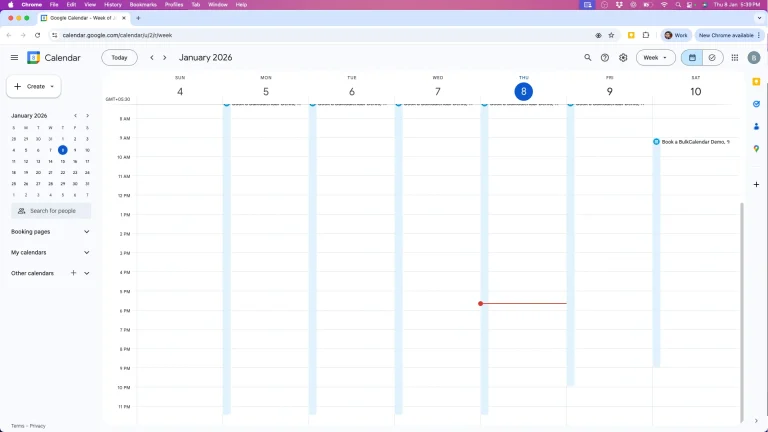
Here are all the ways you can send calendar invites using Google Calendar:
A. Google Calendar API (Requires Technical Skills)
The Google Calendar API is a technical tool created mainly for developers. It allows programmers to connect their software directly with Google Calendar. Developers can use this tool to automatically create events. They can send multiple calendar invites at once. This means you don’t have to add guests one by one.
This method involves writing code that tells Google Calendar to create an event. It specifies who to invite and when to send the invites. For people who understand programming, this can feel powerful and flexible. But for normal users, the idea of writing code itself feels confusing and stressful.
Setting up the Google Calendar API requires many steps. If even one step is done incorrectly, the invites may not send at all. Because of this, many people give up on this method after trying it once.
This method can send multiple calendar invites. Yet, it’s not meant for beginners or non-technical users. It also has strict limits on how many invites can be sent in a day, which makes it unreliable for large public events.
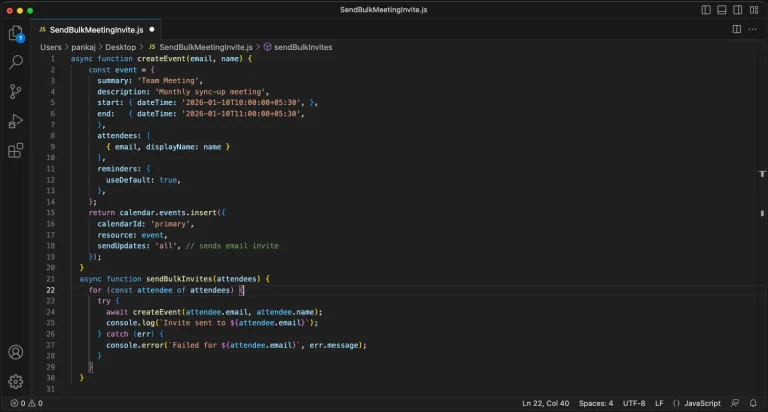
The steps:
- Create an event using Google Calendar developer tools.
- Add guest emails using code.
- Enable email updates so invites are sent.
Positives:
-
- This method gives full control over how calendar events are created and managed by the system.
- It allows automation, so invites can be sent without manual email typing.
- Useful for developers who already work with APIs daily.
Negatives:
- This method requires strong programming knowledge, which most users do not have.
- Setup is time-consuming and confusing for beginners.
- Daily invite limits restrict how many people can be invited.
- Google may block or limit usage if it detects unusual sending behavior.
B. Using Google Sheets + Apps Script
This method tries to make Google Calendar easier by using Google Sheets. Google Sheets works like a simple table where you store names and email addresses. Many people already use spreadsheets, so this method feels more familiar at first.
The idea is simple. You keep all guest emails in one sheet. Then, you use Google Apps Script to read the data and send multiple calendar invites automatically. Once the script works, it can save a lot of time compared to manual entry.
However, the setup process is not simple. You still need to write or copy code, understand how scripts work, and test the system carefully. If the script has errors, invites may not send or may send incorrectly.
This method also does not solve privacy problems. Often, guests can still see each other’s email addresses. Google Sheets with Apps Script is best for internal teams. It’s not ideal for public events where privacy is important.
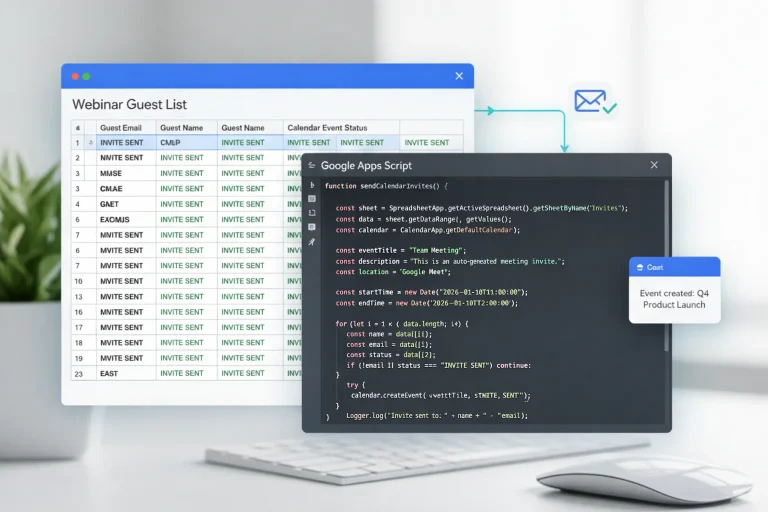
The Steps:
- First, you create a Google Sheet and carefully enter all guest email addresses in rows.
- Then you open Google Apps Script and paste a calendar automation script.
- You must edit the script to match your event details like date, time, and title.
- After that, you test the script with a few emails to avoid mistakes.
- Once confirmed, you run the script to send multiple calendar invites automatically.
Positives:
- Saves time once the script is properly set up and tested.
- Works well when guest data already exists in spreadsheet format.
- Uses free tools provided by Google.
Negatives:
- Script setup is difficult for non-technical users.
- Any mistake in the sheet or script can cause invite failure.
- Guest email privacy is not protected.
- External sending may trigger spam warnings.
C. Using Google Groups (Best for Internal Teams)
Google Groups lets you send multiple calendar invites. It uses Google tools to do this. Instead of adding hundreds of emails one by one, just make one group email. This email will include all members.
This method feels easy because you only add one email address to the calendar invite. Everyone inside the group receives the invitation automatically. For office teams, this can save a lot of time and reduce typing work.
But Google Groups is mainly built for internal communication, not for event management. Managing group members takes extra effort. You should add and remove people carefully. Sometimes, permissions may block you from seeing or editing members.
Another major issue is privacy. All group members can often see each other’s emails. Google Groups isn’t good for webinars, public events, or external meetings. Privacy matters in these cases.
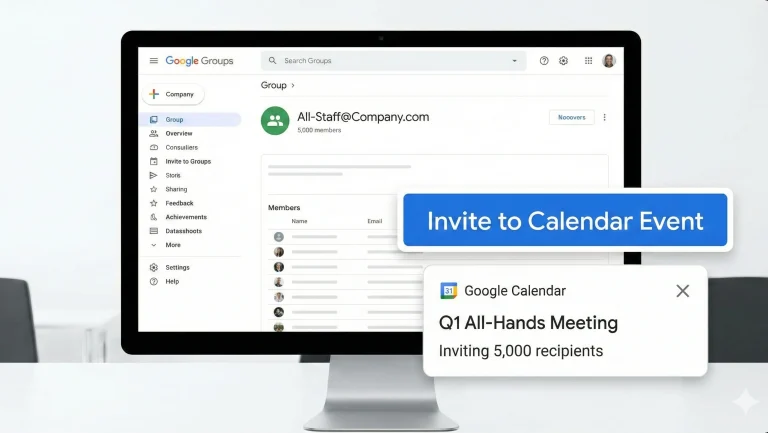
The Steps:
- First, you create a Google Group and give it a group email address.
- Then you manually add all members to the group one by one.
- After creating the group, you open Google Calendar and create an event.
- You add the group email instead of individual guest emails.
- When the event is sent, all group members receive the invite.
Positives:
-
- Reduces the need to type many email addresses repeatedly.
- The group can be reused for internal meetings.
- Easy to manage when the group already exists.
Negatives:
-
- Not suitable for public or external events.
- All guests may see each other’s email addresses.
- Group maintenance becomes difficult over time.
-
- Requires admin permissions in many organizations.
2. Microsoft Outlook
Microsoft Outlook is widely used in offices around the world. Many companies depend on Outlook for emails, calendars, and meetings. So, people often use Outlook to send multiple calendar invites.
Outlook works well for small office meetings. You can easily schedule team calls, do weekly reviews, and hold internal discussions. But as the number of guests increases, Outlook starts feeling heavy and complicated.
The interface has many buttons, menus, and options. New users often struggle to find the right features. Large invites can slow Outlook down. This can confuse external guests.
Outlook isn’t made for many invitations. So, users often turn to tools like Mail Merge or Contact Groups. These methods work, but they require learning new steps and dealing with limitations.
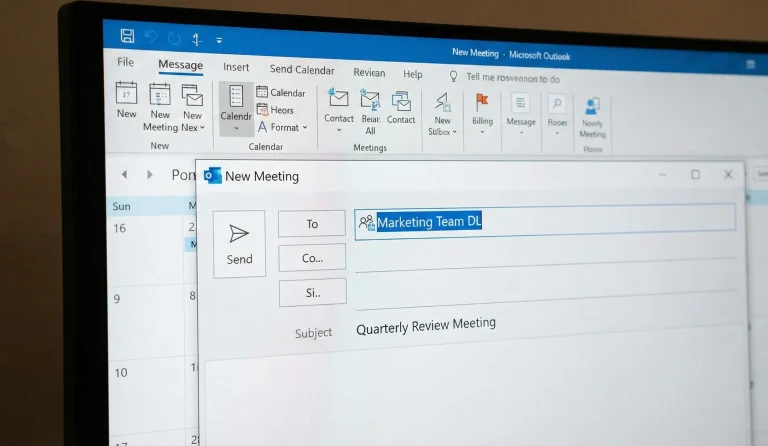
Below are the simple ways to send multiple calendar invitations using Microsoft Outlook:
A. Using Mail Merge (Word + Outlook)
Mail Merge is a feature that combines Microsoft Word and Outlook. It was created for sending multiple emails, not calendar invites. Still, many users try to use it to send multiple calendar invites.
The idea is to prepare a list of guests in a document and then send multiple calendar invitations. This reduces the need to type each email address manually and saves some time.
However, Mail Merge is not very user-friendly. The setup process has many steps, and one small mistake can cause the entire process to fail. For beginners, this method often feels confusing and overwhelming.
Mail Merge also lacks flexibility. Customizing calendar invites or handling large guest lists becomes difficult. Because of this, it is mostly used by experienced office workers, not beginners.
The Steps:
- First, you prepare a guest list using Excel or Word with correct formatting.
- Then you connect Outlook with Word using the Mail Merge feature.
- You configure merge fields and meeting details manually.
- After setup, Outlook sends invites to each recipient one by one.
- You must monitor responses and errors manually.
Positives:
-
- Works inside Microsoft Office tools already used by many companies.
- Reduces manual typing of email addresses.
- Useful for internal corporate communication.
- Similar to the Google spreadsheet method.
Negatives:
- The setup process is confusing and easy to break.
- Not designed specifically for calendar invites.
- Difficult to customize events for different audiences.
- Not suitable for large or public events.
B. Using Distribution Lists / Contact Groups
Distribution Lists, also called Contact Groups, are commonly used in Outlook. They allow you to save many email addresses under one group name. When you use this group name, everyone inside the group receives the invite.
This method is helpful for teams that meet regularly. You create the group once and reuse it for weekly or monthly meetings. This saves time and reduces repeated work.
But for large events, Contact Groups create problems. Managing group members becomes difficult, and privacy issues arise. Guests can often see who else is invited, which is not acceptable for public events.
Contact Groups are good for internal teams. They don’t work to send multiple invites to outside people.
The Steps:
- First, you create a Contact Group inside Outlook.
- You add all required email addresses to the group.
- You save the group and reuse it for calendar invites.
- While creating an event, you add the group name instead of emails.
- Outlook sends invites to all group members.
Positives:
- Saves time for repeated internal meetings.
- Easy to reuse for weekly or monthly schedules.
- Works well inside company email systems.
Negatives:
-
- Guest email privacy is not protected.
- Reply-all email chains can create confusion.
- Hard to manage large or changing groups.
- Not suitable for external audiences.
3. Apple Calendar
Apple Calendar, also known as iCal, is a part of the Apple ecosystem. It works across iPhones, iPads, and MacBooks. For Apple users, this makes scheduling easy and fast.
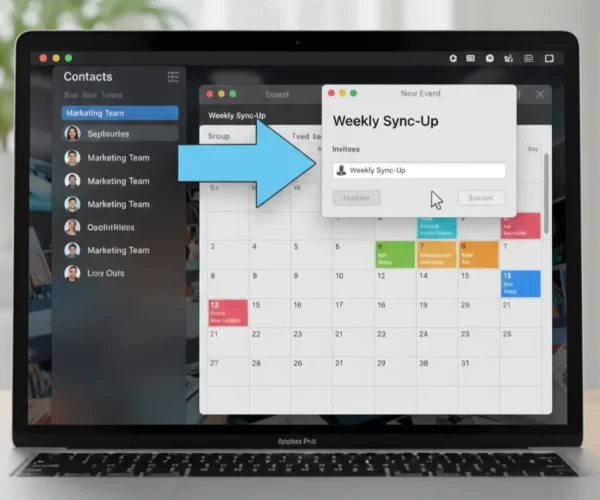
Apple Calendar lets users make contact groups. They can add these groups to send multiple calendar invites. This works well for small personal or family events.
Yet, Apple Calendar is not built for large-scale invitations. It lacks advanced controls and privacy options. Managing many guests becomes slow, and performance can drop.
Apple Calendar works best for small groups and personal use. It’s not ideal for professional events that need multiple reliable invitations.
The Steps:
-
First, you open the Contacts app on your Apple device.
-
You create a new contact group and add all guests.
-
Then you open Apple Calendar and create an event.
-
You add the group name as invitees.
-
The invite is sent to all group members.
Positives:
-
- Works smoothly inside Apple devices.
- No extra tools or costs required.
- Simple interface for basic scheduling.
Negatives:
-
- Limited number of guests supported.
- Guest list privacy cannot be controlled.
- Not suitable for non-Apple users.
- Performance drops for large groups.
4. The "Calendar Link" Technique
The calendar link method works very differently from direct invitations. You share a link instead of sending invites. This link lets people add the event to their own calendars.
This method is often used for public events, webinars, and online sessions. It is easy to share one link through email, WhatsApp, or social media.
While this method is simple, it does not truly send multiple calendar invites. It depends on users clicking the link and adding the event manually. There is no guarantee that guests will add it or attend.
Calendar links are good for sharing info, but they are poor at managing attendance. They also can’t track confirmed guests.

The Steps:
- First, you create an event using a calendar link generator tool.
- The tool creates links for Google, Outlook, and Apple Calendar.
- You copy the link and share it via email or social media.
- Guests must click the link themselves.
- Each guest manually adds the event to their calendar.
Positives:
-
- No risk of spam or email blocking.
- Works across different calendar platforms.
- Easy to share using one link.
Negatives:
-
- No guarantee that guests will add the event.
- No confirmation of attendance.
- Requires guest action to succeed.
- No personalization or tracking.
5. Using CRM Automation
CRM systems are mainly used by sales and marketing teams to manage customers. Some CRM tools include features to send multiple calendar invites using automation.
This method works by creating workflows. When a person enters a group or list, the system automatically sends a calendar invite. This reduces manual work and saves time for teams.
Yet, CRM systems are complex and expensive. Setting them up takes time and training. For beginners or small teams, this method often feels too heavy.
CRM automation is best for businesses that already use CRM tools daily. For others, it adds unnecessary complexity just to send multiple calendar invites.

The Steps:
- First, you create a contact list or segment inside the CRM.
- You design an automation workflow for calendar invites.
- The CRM connects with calendar services using APIs.
- When conditions are met, invites are sent automatically.
- You monitor delivery and responses inside the CRM.
Positives:
-
- Highly personalized invitations are possible.
- Works well for sales and marketing teams.
- Integrates with customer data.
- It can be easy if someone already knows CRM software.
Negatives:
-
- Expensive for small businesses.
- Complex setup process.
- Requires training to use correctly.
- Overkill for simple scheduling needs
The Easiest Way - BulkCalendar
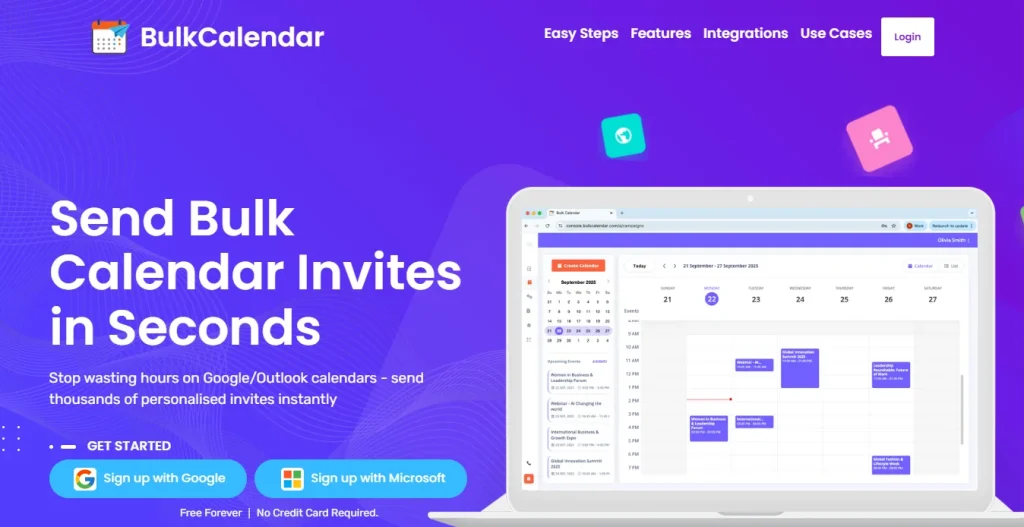
To avoid these problems, you need a tool made specially for this work, like BulkCalendar. It connects your email list or spreadsheet directly with people’s calendars. This helps every invite reach the guests safely without showing their private emails.
BulkCalendar is a simple and fast way to send bulk calendar invites in 2026. It removes problems like guest limits and privacy risks. This way, you can focus on planning your event instead of spending time on manual work.
3 Easy Steps
Save hours of manual work – in just 3 simple steps, you can personalize every invite and send bulk meeting invites directly from your own email and domain
Create Calendar
Add a Personal Touch, Use First Names or Any Data You Choose
Import Guests
Copy-paste thousands of emails, or upload a CSV or Excel file
Send
Send securely from your own email or domain
Purpose-Built Tool That Saves You Hours
BulkCalendar makes sending, personalizing, and managing large calendar invites effortless - so you can focus on running your events, not fighting your calendar.
Mass Invites in Seconds
Send thousands of invites at once without guest limits or repetitive clicks.
Personalized for Every Guest
Add names, custom notes, and details so every invite feels personal and engaging.

Works with Every Calendar
Send calendar invites that work seamlessly across all major apps - Google, Outlook, Apple, Yahoo, and more. So your attendees never miss an event.




Conclusion
Scheduling meetings by hand wastes a lot of time and energy. Google has guest limits, and Outlook can have privacy problems. But there is a better and easier way to manage your invites and your guests.
Your time is too important to spend on typing emails one by one. Planning meetings should be easy, not the hardest part of your work. With a simple 3-step method, you can invite thousands of people safely and personally.
Want to try it yourself? Join many professionals who have made scheduling easy.
Free Forever | No Credit Card Required