
Send Mass Meeting Invites: Step-by-Step Guide
If you want to send mass meeting invites, you need a method that can invite many people at one time. Most common methods force you to add email IDs one by one, and that is slow and boring. Many people look for “send mass meeting invite.” They want a quick and easy way to do it, rather than doing it manually.
The problem is that normal methods were not designed for large groups. Using these methods for mass invites has limits. You also face privacy issues and too much manual effort.
This guide explains the common hard methods people use today. It also shows the easiest method to send mass meeting invites to hundreds or thousands of guests in just 3 Easy Steps.
Why People Need Mass Meeting Invites?
When someone searches for “send mass meeting invites”, they usually want an easy way to invite many people to the same meeting. They do not want to add names or emails one by one. They want the job done fast and without confusion. This is often needed for:
- Events & Marketing
- Webinars
- Professional Conferences
- School/Office meetings
- Online Demos & Courses
Now, let us look at the common traditional methods people use to send mass meeting invites today. Then We will show you the easiest way to send mass meeting invites in 2026.
The Traditional Ways
1. Google Calendar
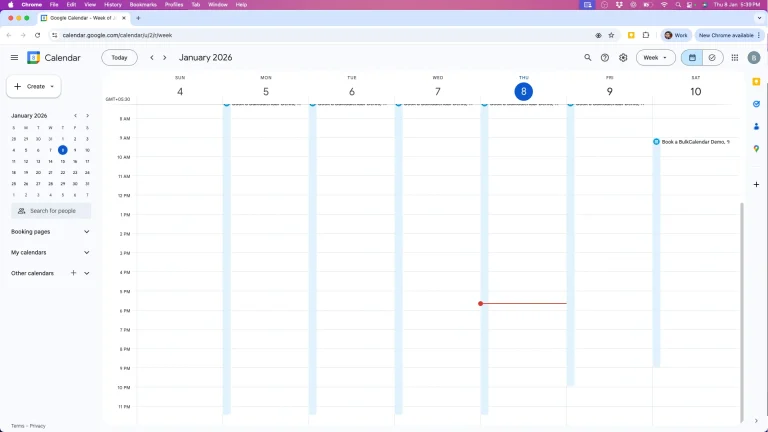
Google Calendar is the first method most people use when they want to send mass meeting invites. It is free and already connected with Gmail. For small meetings, it works very well. But when the guest list becomes large, the problems start to show.
The biggest issue is that Google Calendar asks you to add guests one by one. If you have 300 emails, you must paste all of them manually. This takes a lot of time and increases the chance of mistakes. Also, by default, guests can see each other’s emails, which is unsafe for public mass meeting invites.
Google Calendar works well for daily team meetings. However, it wasn’t made for inviting strangers or large groups.
Here are all the ways to send meeting invites using Google Calendar:
A. Using Google Groups:
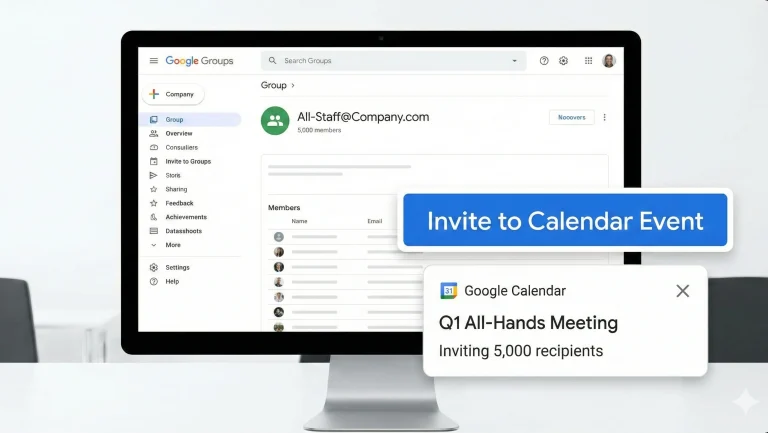
Google Groups is a common way people use to send mass meeting invites. Instead of adding 500 emails, you create one group email like [email protected]. All members are stored inside that group. Then you add only that one email to the calendar event.
This method feels easy at first. If a new person joins the group, they will automatically get future invites. You don’t need to update the event again. For internal company teams, this can save time.
But for public events, this method becomes risky. Every guest can see the emails of other guests. You also need admin permissions to manage the group. If you create many events, you must create many groups, and management becomes messy.
The steps:
- Create a group in Google Groups and add all members.
- Open Google Calendar and create your event.
- In the “Add Guests” field, type the group’s email address.
- Important: Click the arrow next to the group name to see if you want to expand the list or keep it as one entry.
Benefits:
- This feature is capable of supporting from 200 to 500 emails, making it ideal for small corporate town halls, global webinars, major public events, and educational seminars.
- The list automatically updates if people join or leave the group.
- Can be Useful when working with an internal team.
- The process can be very easy if someone has already created a Google Group.
Drawbacks:
- Every guest can see other guests’ email addresses, exposing privacy not suitable for public events.
- Can’t send calendar invite to external guests.
- Can’t add or remove members according to event requirements.
- Need to create many groups for each event.
- Increases hassle for creating, maintaining, and updating Google groups.
- You require Admin-level permissions for “View Members” permission,
B. Google Calendar APIs:
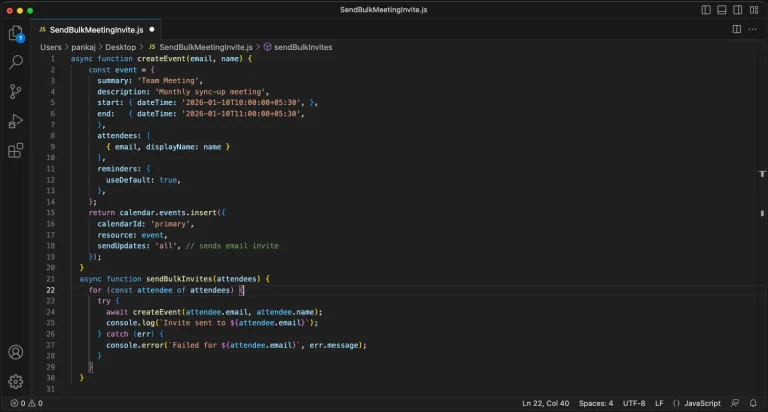
The API method is meant for programmers. A developer writes code that talks to Google Calendar and sends invitations automatically. In theory, this can help to send mass meeting invites without typing emails.
The program can read a list of emails and create events one by one. Big companies sometimes use this method for internal systems. But it is not friendly for normal users.
You must know coding, JSON files, and Google developer settings. Google also limits how many invites you can send per day. If you cross the limit, Google may block your account thinking you are spamming.
The Steps:
- Use the Events: insert method and define the attendees array in your JSON payload.
- Set sendUpdates to “all” to ensure emails are sent.
Benefits:
- This method offers total control over the process.
- You can send invitations programmatically with more control.
- Good method for people who are familiar with working around APIs.
Drawbacks:
- This method requires coding knowledge.
- No personalization in the calendar
- Mass invitations are constrained by the service’s current API quota limits.
- NOT suitable for large events.
Google or Gmail may flag you as a spammer and block you over time.
C. Google Sheets + Apps Script
Another method is to keep all emails in Google Sheets and run a script. The script reads each row and sends an invite from your calendar. Many online forums share such scripts.
This method can work for small experiments. But setting it up is hard. If the code has even one mistake, the whole process fails. You must test again and again before you can send mass meeting invite safely.
Also, this method still shows guest emails and has no built-in privacy. For events with strangers, this is dangerous.
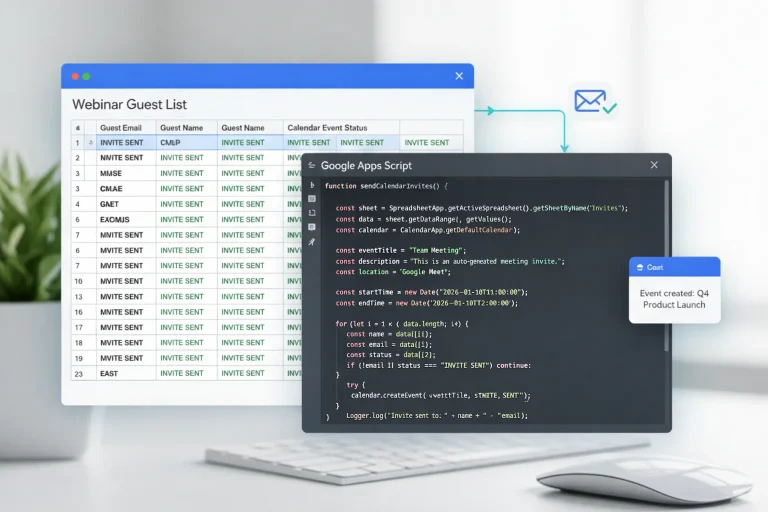
How it works: You list your guests in a Google Sheet and run a script to “blast” the invites using your google calendar account
The Steps:
- Open a Google Sheet and list emails in Column A.
- Go to Extensions > Apps Script.
- Paste a simple “CalendarApp” script (available in most online dev forums).
- Run the script to send bulk meeting invite requests to the entire list instantly.
Benefits:
- The service is completely free.
- Effortlessly manages hundreds of invitations in a matter of seconds.
- The process becomes fast if you already have a spreadsheet ready.
Drawbacks:
- The process requires deep knowledge of App Script programming.
- Every guest can see other guests email exposing privacy not suitable for public events.
- No personalization in the calendar.
- It can trigger spam filters if sent to external groups.
2. Microsoft Outlook
Microsoft Outlook is used in many offices to send mass meeting invites. A lot of people think Outlook can easily send invites to many people at once. For a small team in a company, this usually works well. But when the group is very big or includes different kinds of people, Outlook starts to show problems.
The Outlook screen can also be hard to understand for new users. Many important options are hidden inside different menus, so people don’t know where to click. When the list of guests becomes very long, Outlook becomes slow and difficult to manage. This makes the whole process tiring instead of easy.
Below are the different ways to send mass meeting invitations using Outlook:
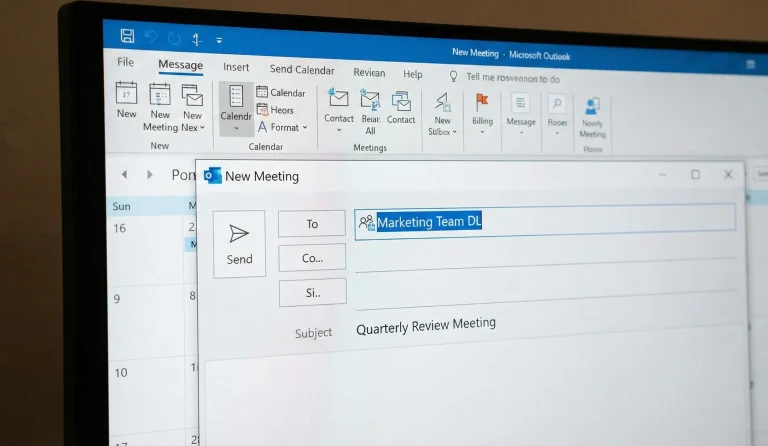
A. Contact Groups in Outlook:
Contact Groups let you save many email addresses under one single name. Later, you can invite that whole group to a meeting with just one click. This is very useful for regular office meetings, like a weekly team call.
But this method does not work well for public events. Everyone in the group can see the email addresses of other people. If even one person clicks “Reply All”, that message goes to hundreds of people at once. This can fill everyone’s inbox with unwanted emails and create a lot of confusion and chaos.
The Steps:
- Go to People > New Contact Group.
- Add members from your address book or a file.
- Create a new meeting and enter the Group Name in the “To” field.
Benefits:
- Meeting invitations typically have high deliverability within the same company.
- Easy to reuse for weekly meetings.
- Good for people who are used to work around Microsoft office products.
Drawbacks:
- No personalization in the calendar.
- Uncontrolled “Reply All” storms in email can quickly become a nightmare.
- It can be difficult to manage for external recipients.
- Outlook has a complex user interface, which can be confusing.
- Other attendees can view the names of all the guests.
B. Mail Merge with Outlook:
Some people use Microsoft Word and Outlook together to plan meetings. They first create a message in Word and then use Outlook to send it to many guests. The guests can choose, or “vote,” for the time they like best. After everyone votes, Outlook sends one final invitation with the decided time.
This may sound smart and helpful, but it is not easy in real life. Each guest gets many emails—one for voting, one for reminders, and one for the final invite. For a small group, this might be okay. But for a big group, it becomes very messy. People get confused about which email to open and which link to click. The person organizing the meeting also finds it hard to track all the replies. Instead of saving time, it often creates more work and stress.
The Steps:
- Open a new email or meeting invite and click the New Meeting Poll button in the ribbon.
- Select several time slots from your calendar that you are willing to host.
- Enter your list of recipients and send the poll.
- Once a consensus is reached, the poll can automatically send a final calendar invite to all participants.
Benefits:
- Let recipients choose the meeting time instead of forcing one.
- Automatically holds your calendar to prevent double-booking during voting.
- Delivers the final invite once the preferred time is selected.
- Similar to the Google spreadsheet method.
Drawbacks:
- External users often struggle with logging in and a poor voting experience.
- With 50+ attendees, agreeing on a time is nearly impossible.
- Limited customization makes these polls unsuitable for crucial corporate needs.
- Both parties receive excessive automated change-notification emails.
- Compatible calendar systems are rarely used in large, diverse lists.
3. Apple iCal
Apple Calendar lets you send mass meeting invites from your MacBook or iPhone. Since Apple devices work well together, moving data between them feels smooth and easy. This makes scheduling simpler if you already use Apple products.
However, the app takes some time to learn. The design looks nice, but it focuses more on appearance than on getting work done quickly.
Apple Calendar is made mainly for everyday users. Even so, Mac and iPhone users can still use it to send invites to many people at once.
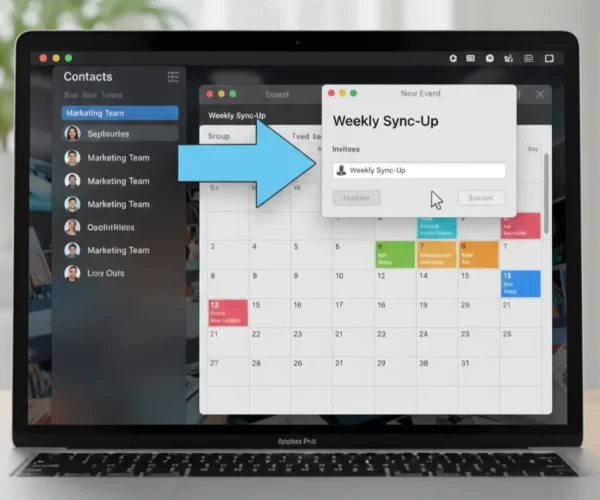
This method uses Apple’s connected apps. First, guest details are saved in the Contacts app. Then, those contacts are dragged into Apple Calendar (iCal). After that, you create a new event and send the invites.
This works very well with other Apple apps. However, it may not work smoothly when used on non-Apple devices or other operating systems.
The Steps:
- Open the Contacts app and create a “New Group.”
- Drag the desired contacts into this group.
- Open iCal, create an event, and type the Group Name into the “Invitees” field.
Drawbacks:
- No built-in way to hide the guest list.
- No personalization in the calendar.
- Limited to about 100 guests before performance lags.
- Doesn’t support connectivity with non-Apple devices.
- Guest are able to see other attendees names.
4. The "Calendar Link" Method:
In this method, you do not send a direct meeting invite to people. Instead, you share a link that says something like “Add to Google Calendar.” Each guest has to click the link and add the event on their own.
This works well for open events like online webinars, where anyone can join. But it is not a real way to send mass meeting invites, because the meeting is not added automatically to people’s calendars. Everything depends on the guest remembering to click the link and save it.
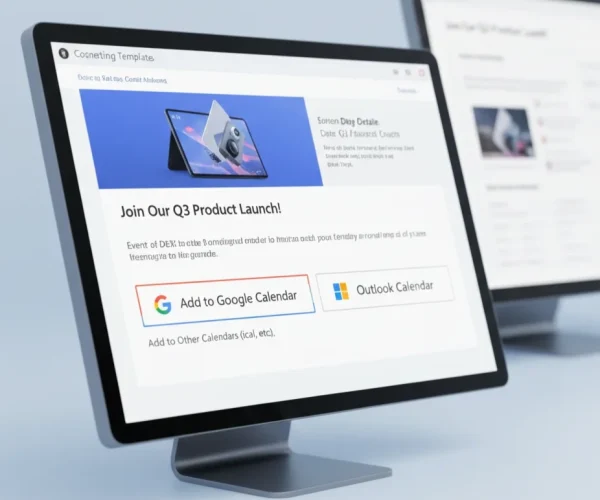
The Steps:
- Enter your event details into a calendar link generator.
- It creates a link (e.g., “Add to Google”, “Add to Outlook”).
- Paste this link into a mass email or social post.
Benefits:
- This approach carries zero risk of being marked as spam.
- Guests have the option to add the event to their own calendars.
- Best for sharing the invitation in a small group of people.
- A single link can be shared with all the guests.
Drawbacks:
- You won’t know who added the meeting invite until they actually show up.
- The process requires the user to take action.
- Attendance is optional, dependent on the recipient’s preference.
- The meeting doesn’t automatically add to the user’s schedule.
- This method lacks personalization due to a single sharable links.
5. Using CRM Automation:
Some big tools like HubSpot, Salesforce, or Zoho can also be used to send mass meeting invites. They can use the email addresses saved in their system. This is helpful only if you are already using one of these tools for your work.
But setting this up is not easy. Each platform works in a different way, so people have to learn many steps. For small teams, using such big and complicated tools just to send mass meeting invites feels too difficult and unnecessary.
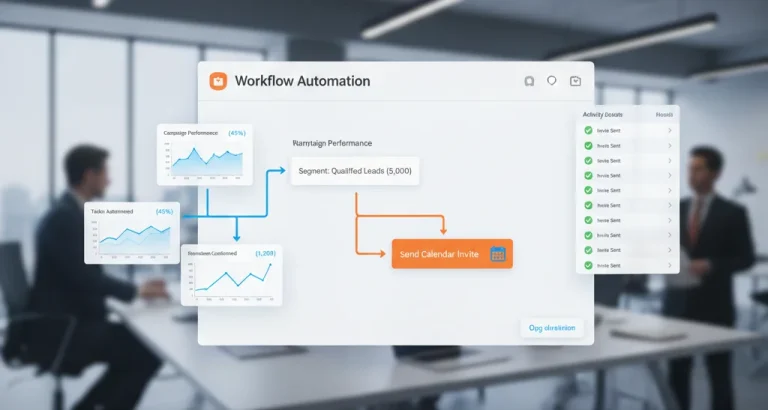
How it works: Use “Workflows” or “Automations” to trigger a calendar event.
The Steps:
- Create a “Segment” of the people you want to invite.
- Set a workflow trigger to “Send Meeting Invite.”
- The CRM uses its official API to send mass meeting invites to that specific segment.
Benefits:
- The meeting invites should be highly personalized.
- The feature syncs with your sales data.
- Specifically for professionals who are familiar with CRM systems.
- It can be easy if someone already knows CRM software.
Drawbacks:
- It can be a very expensive option if you do not already pay for a CRM system.
- This setup is complex for beginners.
- Steps may change based on the used platform.
- Doesn’t provide content personalization.
- Initial setup can be quite time consuming.
Why Traditional Tools are Insufficient
All these traditional methods were designed for small internal meetings. When you try to use the same methods to send mass meeting invites to large public lists, they start to fail because:
- Emails get exposed to everyone.
- The process is mostly manual.
- Spam blocks can happen.
- There is no proper RSVP system.
- Many tools don’t allow large meeting invites.
They try to solve the same problem, but none of them are truly simple. They often need technical skills, can break privacy, or take too much time. That is why users keep searching for an easier way to handle large meeting invitations.
The Easiest Way - BulkCalendar
To bypass these limits, you need a purpose-built tool like BulkCalendar. It serves as a link between your spreadsheet and attendees’ calendars. This ensures every invite reaches them without risking their privacy.
BulkCalendar is an easy and fast way to send mass meeting invites in 2026. It removes problems like guest limits and privacy leaks. This helps you focus on your event instead of spending time adding emails by hand.
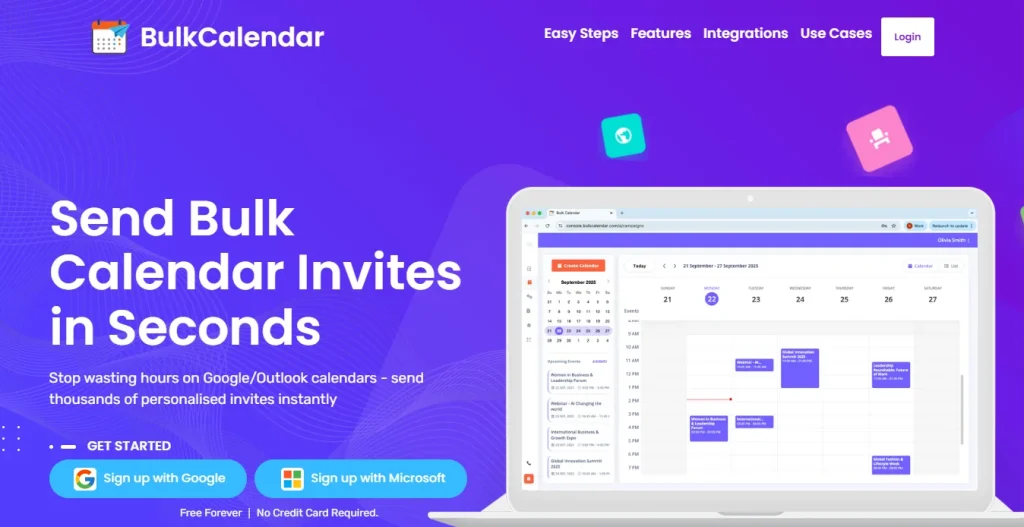
3 Easy Steps
Save hours of manual work – in just 3 simple steps, you can personalize every invite and send bulk meeting invites directly from your own email and domain
Create Calendar
Add a Personal Touch, Use First Names or Any Data You Choose
Import Guests
Copy-paste thousands of emails, or upload a CSV or Excel file
Send
Send securely from your own email or domain
Purpose-Built Tool That Saves You Hours
BulkCalendar makes sending, personalizing, and managing large calendar invites effortless - so you can focus on running your events, not fighting your calendar.
Mass Invites in Seconds
Send thousands of invites at once without guest limits or repetitive clicks.
Personalized for Every Guest
Add names, custom notes, and details so every invite feels personal and engaging.
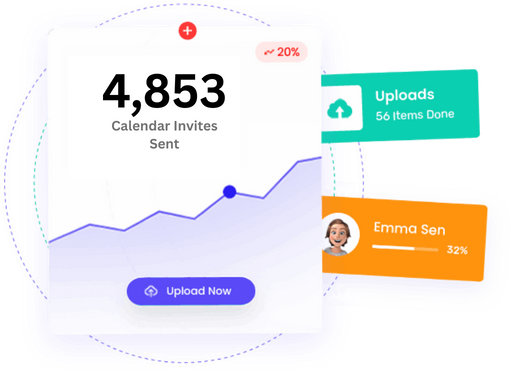
Works with Every Calendar
Send calendar invites that work seamlessly across all major apps - Google, Outlook, Apple, Yahoo, and more. So your attendees never miss an event.



Conclusion
Doing meeting schedules by hand wastes a lot of time.
Adding people one by one is slow and often causes problems. There is a much easier way to invite everyone.
Your time matters. Sending invites should be simple, not stressful. With a few easy steps, you can send meeting invites to many people at once and still keep them personal.
Want to see how easy it is?
Many professionals already use BulkCalendar to save time and work faster.
Try BulkCalendar for free today.
Free Forever | No Credit Card Required